Help
Detailed help is built into the app and works offline. Here is how to open it, and answers to the most common questions.
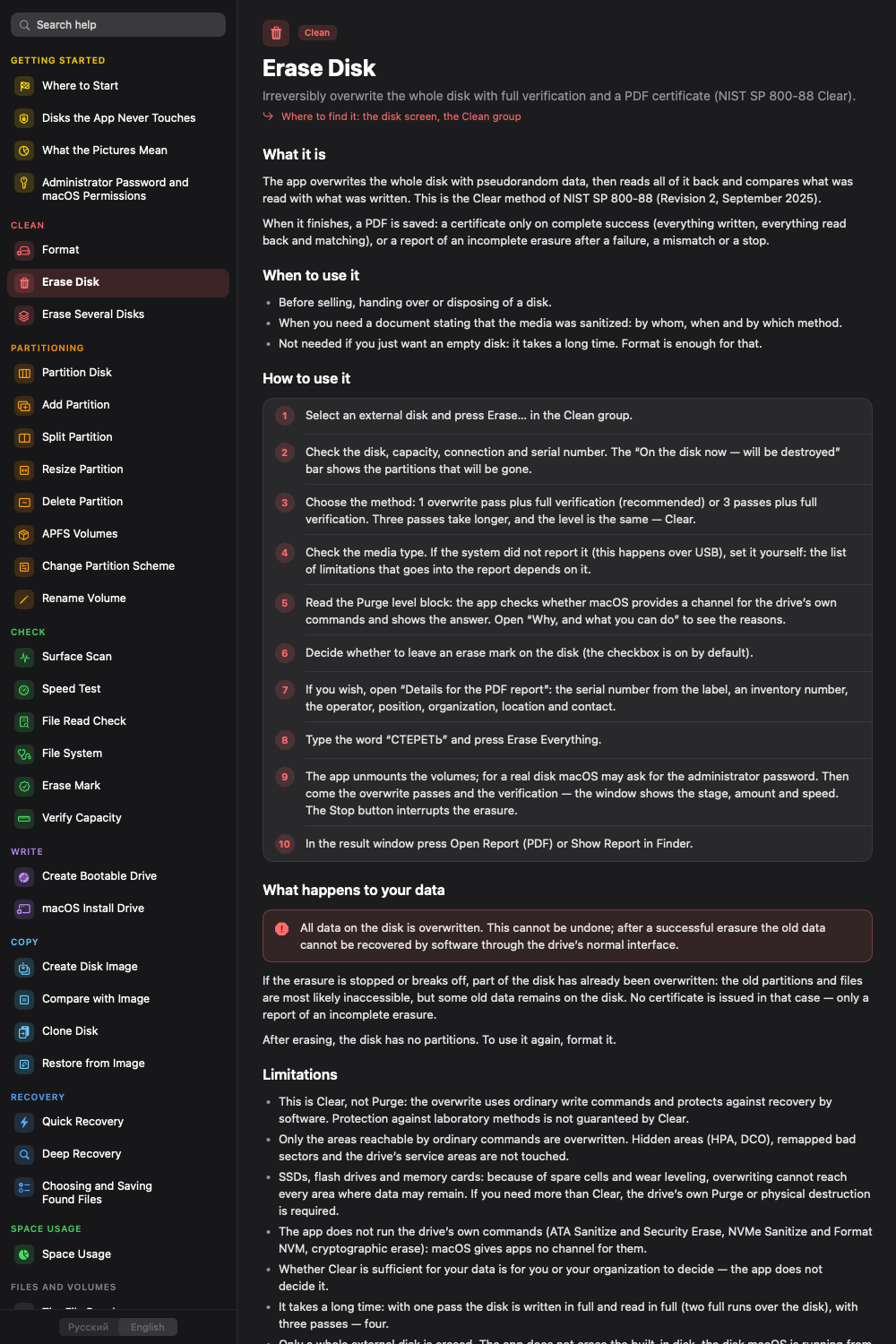
Where help is in the app
- The Help menu (shortcut ⌘?).
- The “Help” button below the list of disks.
- The “?” icon in the title of each action window: it opens the article about that action.
Every action has an article in five parts: what it is, when you need it, how to use it, what happens to your data, and limitations. Help has search.
Common questions
The app refuses to erase a disk
The app does not erase, format or write to the built-in system disk. That is a safeguard, not a bug.
An operation asks for an administrator password
For actions on real disks macOS may ask for an administrator password: that is how access to devices works in the system.
An operation failed
In the Help menu choose “Report a Problem…”: the app builds a report you can copy or save to a file and attach to a message to support.
I lost files
Stop using the disk. Do not write anything new to it, including recovered files. Read what the app can and cannot do: disclaimer, sections 4–5. If the disk holds irreplaceable data and behaves strangely, consider a professional data recovery service before running any software.
Guides
Step-by-step material, with and without the app: all guides.